how to fix corrupted file : A Guide to Fixing Corrupted Files (Without Sacrificing Your Sanity)
The Digital Resurrection: A Guide to Fixing Corrupted Files (Without Sacrificing Your Sanity)
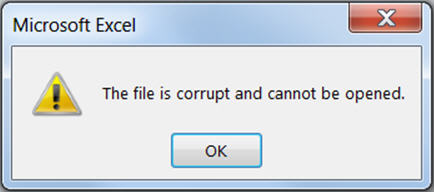
Ah, the "Corrupted File." It’s the digital equivalent of biting into a delicious-looking chocolate chip cookie only to realize it’s actually oatmeal raisin—and the raisin is a pebble. You’ve spent twelve hours on that presentation, your fingers dancing across the keys like a caffeinated Mozart, only for Windows to look you dead in the eye and say: "The file is corrupted and cannot be opened."
Your heart drops. Your eye twitches. You consider moving to a remote cabin in the woods where "data" is just another word for "blueberries."
But wait! Before you perform a Viking funeral for your laptop, let’s talk strategy. Fixing a corrupted file is less about being a "hacker" and more about being a digital paramedic. Here is your guide to bringing your files back from the Great Beyond, served with a side of humor to keep the existential dread at bay.
Phase 1: The Stages of Grief (and Basic Triage)
Before we get technical, we must acknowledge the emotional journey.
Denial: "I'll just click it again. Maybe it was just joking."
Anger: "I am going to throw this router into the sun."
Bargaining: "Please, God, if this Excel sheet opens, I’ll never use Comic Sans again."
Depression: Staring at the blank screen while "Hello Darkness, My Old Friend" plays in your head.
Acceptance: "Fine. I’ll fix it."
Triage Tip: Check the file size. If your 50MB video file now says "0 KB," I hate to be the bearer of bad news, but that file isn't "corrupted"—it’s a ghost. It has ascended. There is nothing left but the memory of what once was. If there’s still "weight" (KB or MB) to the file, there’s hope!
Phase 2: The "Have You Tried Turning It Off and On?" Method
I know, I know. It’s a cliché. But listen: sometimes your computer is just having a "moment." Maybe its RAM is cluttered, or a background process is clinging to your file like an overattached ex.
Step 1: Restart your computer.
Step 2: Try opening the file again.
Step 3: If it works, never speak of this again. If it doesn't, we go deeper.
Phase 3: The Secret Weapon—The "Open and Repair" Feature
Many people don't realize that Microsoft Office actually has its own built-in therapist. It knows it’s prone to breakdowns, so it comes prepared.
For Word, Excel, or PowerPoint:
Open the program (don't double-click the file).
Go to File > Open > Browse.
Select the broken file, but don’t click Open yet.
Look at the "Open" button. See that tiny arrow next to it? Click that.
Select "Open and Repair."
This is the software equivalent of a pep talk. "Come on, document, you can do it! Get those paragraphs back in line!"
Phase 4: Change the "Outfit" (File Extensions)
Sometimes a file isn't broken; it's just confused about its identity. It thinks it’s a .docx when it really wants to be a .pdf, or vice versa.
The PDF Trick: If a Word doc is being stubborn, try right-clicking it and "Save As" or "Export" to a PDF. Sometimes the PDF converter is better at reading the "bones" of a corrupted file than the original software is.
The TXT Trick: If it’s a text-based file, try opening it with Notepad (Windows) or TextEdit (Mac). It will look like a literal demon wrote it—full of weird symbols like ÿðÂ. But! If you scroll through the Matrix code, you might find your actual text buried in there. Copy, paste, and run away.
Phase 5: The "CHKDSK" – Calling in the Heavy Infantry
If the file isn't opening because your hard drive is acting like a grumpy old man, you need to run CHKDSK (Check Disk). This is a command-line tool that sounds scary but is actually just a digital janitor.
Type "cmd" in your Windows search bar.
Right-click Command Prompt and Run as Administrator (this gives you "God Mode").
Type:
chkdsk C: /f(Replace "C" with whatever drive your file is on).Press Enter.
Your computer will now scan its own brain for errors. It might take a while. Go make a sandwich. When it’s done, try opening your file again.
Phase 6: The "Cloud" Time Machine
Did you save this file on OneDrive, Google Drive, or Dropbox? If so, you have a superpower called Version History. Cloud services are like obsessive biographers—they keep every version of your mistakes.
Right-click the file in your cloud folder.
Look for "Version History."
Choose a version from an hour ago before the world ended.
Restore it and weep tears of joy.
Phase 7: Third-Party Software (The "Proceed with Caution" Zone)
If you’re desperate enough to spend money, there are programs like Stellar Repair or Recuva. These are the "Private Investigators" of the tech world. They are often very good, but be careful—the internet is full of "Free File Fixers" that are actually just three viruses wearing a trench coat. Only use reputable, well-reviewed software.
Summary Table: Which Fix Should You Use?
| Level of Disaster | Recommended Action | Success Rate |
| "Minor Glitch" | Restart Computer / Rename File | 15% - But it's free! |
| "Office Meltdown" | Use "Open and Repair" feature | 40% - Great for Word/Excel |
| "Hard Drive Issues" | Run CHKDSK in Command Prompt | 60% - Good for system errors |
| "Total Catastrophe" | Cloud Version History | 95% - If you were smart enough to use it |
How to Never Experience This Pain Again
Now that you’ve (hopefully) rescued your file, let’s talk about prevention. Because "Hope" is not a backup strategy.
The 3-2-1 Rule: Keep 3 copies of your data, on 2 different media (e.g., your laptop and an external drive), with 1 copy off-site (the Cloud).
Don't Pull the Plug: Never rip a USB drive out of your computer like you're starting a lawnmower. "Eject" it properly. The computer needs to say goodbye.
Update Your Apps: Sometimes files "corrupt" because your software is older than a Victorian ghost. Keep things updated.
Final Thoughts
Dealing with corrupted files is the universe’s way of reminding us that we are mortal and that everything—even our 40-page fanfiction—is temporary. But with a little patience and a few Command Prompt tricks, you can usually beat the machine.
And if all else fails? Well, there's always the "Cabin in the Woods" option. Blueberries don't have file errors.
Post a Comment for "how to fix corrupted file : A Guide to Fixing Corrupted Files (Without Sacrificing Your Sanity)"